> ## Documentation Index
> Fetch the complete documentation index at: https://docs.launchmc.com/llms.txt
> Use this file to discover all available pages before exploring further.
# Quickstart
> Let's get you started on creating your new server.
## Get started in three steps
Get your documentation site running locally and make your first customization.
### Step 1: Click on Add-Server
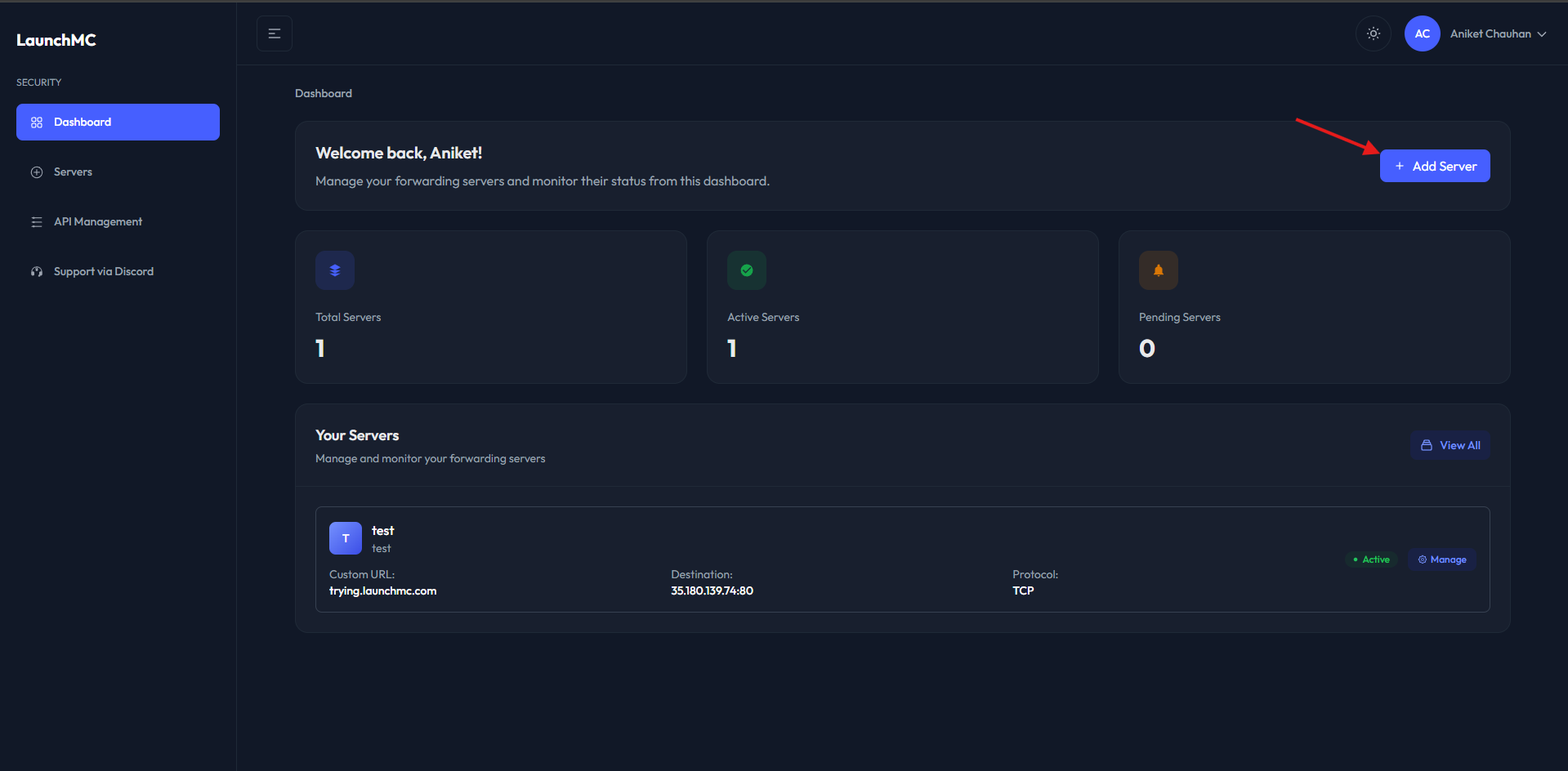 ### Step 2: Fill out information of your server.
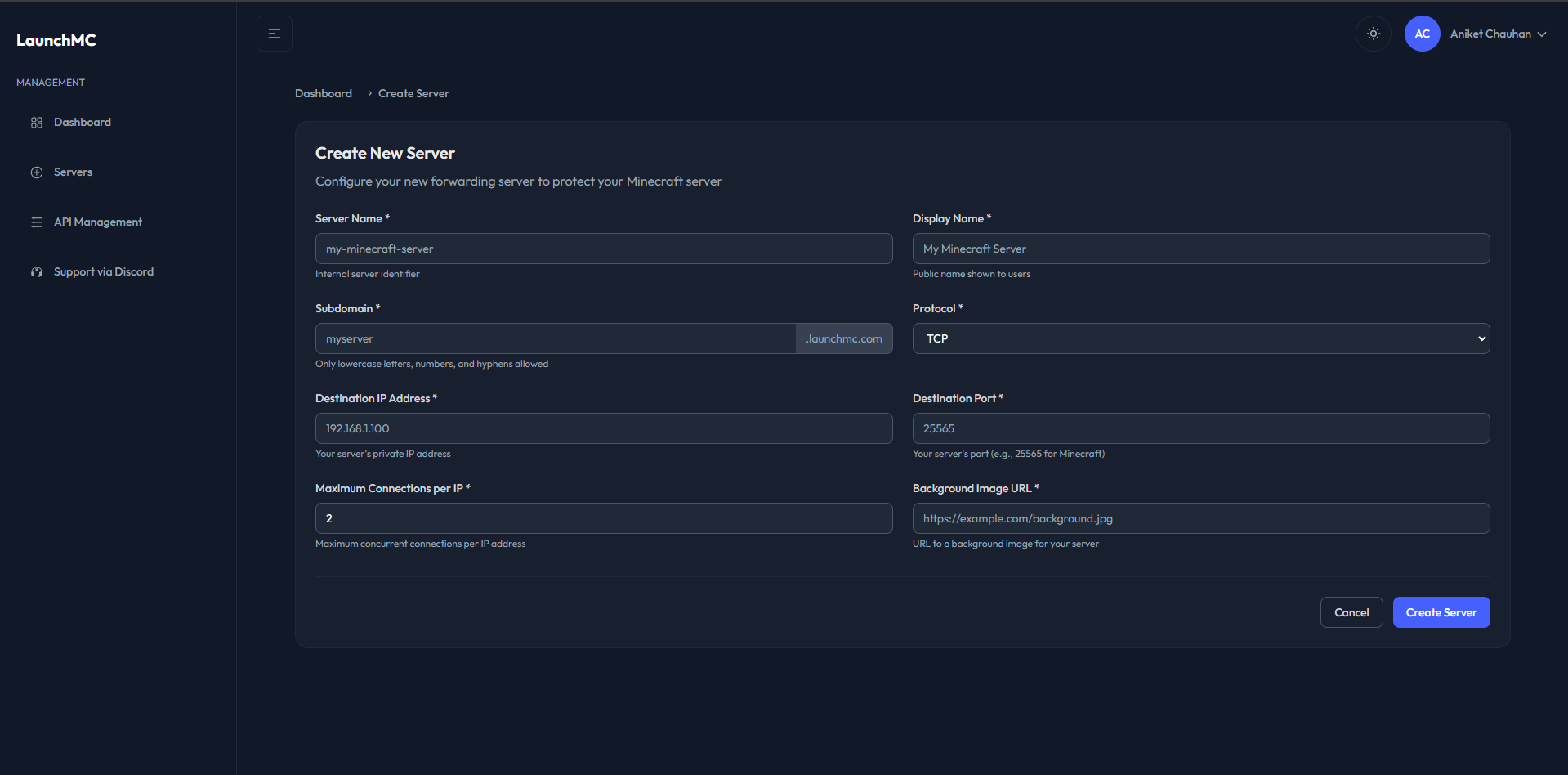 1. **Server Name** **->** Server Name is a local name for a server on your dashboard this is a just an identifier.
2. **Display Name ->** Display Name is the public name of your minecraft server. This is shown everywhere and on the connection page.
3. **Subdomain ->** Select your favourite subdomain for your players to visit the connection page for the connection information.
4. **Protocol ->** Select the protocol of your server. Currently TCP is only available.
5. **Destination IP ->** Your origin IP where your minecraft server is hosted.
6. **Destination Port ->** Your origin port where your minecraft server is hosted.
7. **Maximum Connection Per IP** -> Maximum connection a IP can have to your server. 2 is more than enough for most game servers, If your server requires more than 2 connections simultaneously feel free to increase it.
8. **Background Image URL ->** URL for the background image on the connection page. Refer to [Player Flow.](player-flow)
We recommend using common minecraft ports like 25565 or in range of 25560 -> 25570.
### Step 3: All set to go!
1. **Server Name** **->** Server Name is a local name for a server on your dashboard this is a just an identifier.
2. **Display Name ->** Display Name is the public name of your minecraft server. This is shown everywhere and on the connection page.
3. **Subdomain ->** Select your favourite subdomain for your players to visit the connection page for the connection information.
4. **Protocol ->** Select the protocol of your server. Currently TCP is only available.
5. **Destination IP ->** Your origin IP where your minecraft server is hosted.
6. **Destination Port ->** Your origin port where your minecraft server is hosted.
7. **Maximum Connection Per IP** -> Maximum connection a IP can have to your server. 2 is more than enough for most game servers, If your server requires more than 2 connections simultaneously feel free to increase it.
8. **Background Image URL ->** URL for the background image on the connection page. Refer to [Player Flow.](player-flow)
We recommend using common minecraft ports like 25565 or in range of 25560 -> 25570.
### Step 3: All set to go!
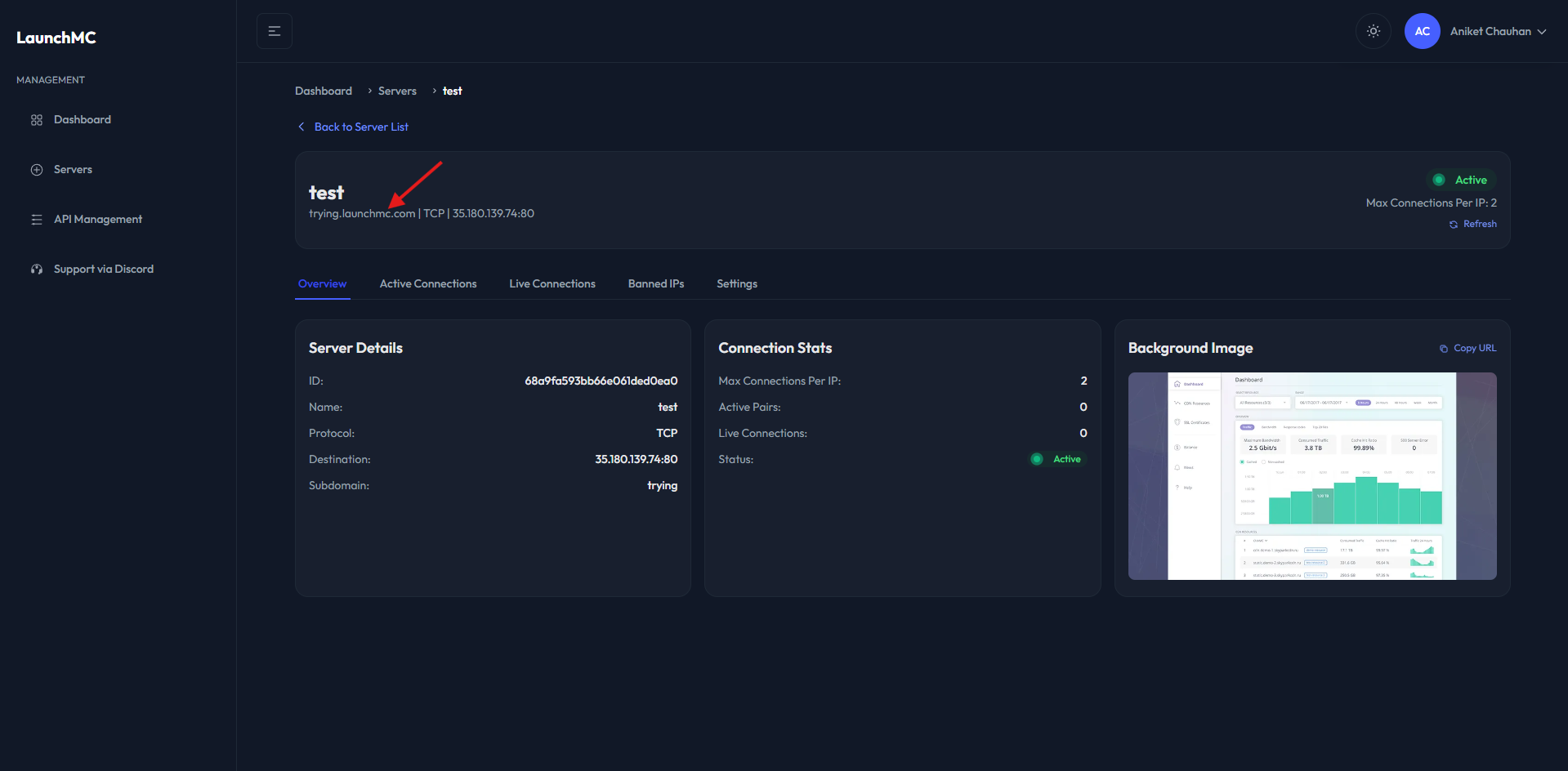 Now as in the screenshot above, you can find your custom subdomain, which you can visit to get the connection details of the server.
**Need help?** Join our [discord ](https://discord.launchmc.com)for support.
Now as in the screenshot above, you can find your custom subdomain, which you can visit to get the connection details of the server.
**Need help?** Join our [discord ](https://discord.launchmc.com)for support.